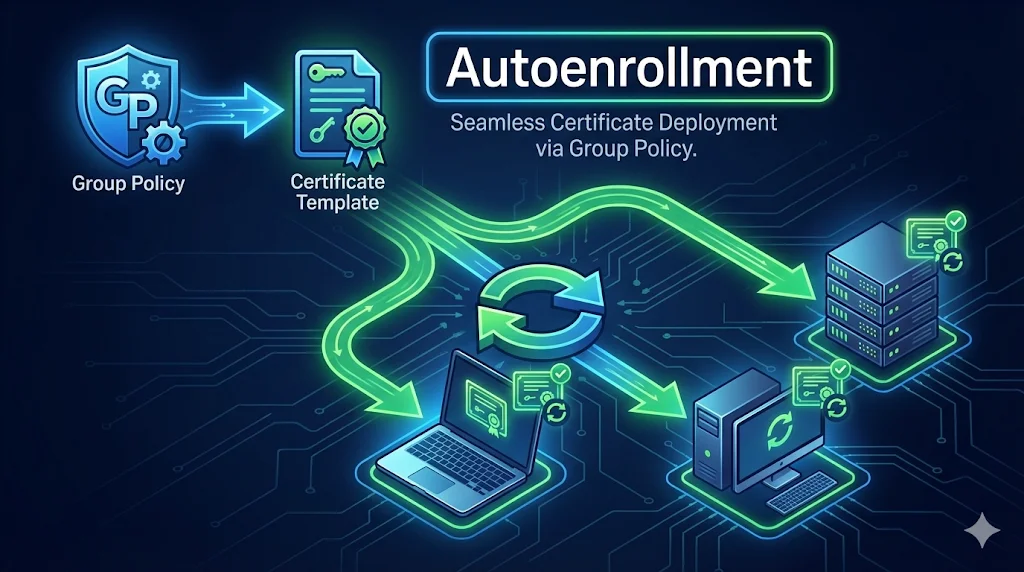
What is Autoenrollment?
Autoenrollment is ADCS magic - certificates deploy automatically to users and computers without manual certificate requests. Configure it once, and machines across your domain will silently receive and renew certificates based on your templates.
Instead of manually requesting certificates for each user's email encryption, each server's web certificate, or each workstation's authentication - autoenrollment handles it all through Group Policy. It's the difference between managing 10 certificates and managing 10,000.
Key Benefit: Autoenrollment also handles certificate renewal automatically. Certificates are renewed when they reach ~20% of remaining validity, preventing expiration-related outages.
How It Works
Autoenrollment follows a 6-step process from template creation to certificate installation:
Admin creates certificate template
Define the certificate properties: key size, validity period, EKUs, and who can enroll.
Template published to CA
The template is added to the CA's list of available templates in the Certificate Templates container.
GPO enables autoenrollment
Group Policy is configured to enable certificate autoenrollment for users and/or computers.
Client applies GPO
During Group Policy refresh (every ~90 minutes or at login/startup), the client sees autoenrollment is enabled.
Client requests certificate
The client checks published templates, finds ones it has permission to autoenroll, and submits requests.
CA issues certificate, client installs it
The CA validates the request, issues the certificate, and the client stores it in the appropriate certificate store.
GPO Configuration
You need to enable autoenrollment in Group Policy for both computers and users (depending on your certificate types). Here are the exact paths:
Computer Configuration
→ Policies
→ Windows Settings
→ Security Settings
→ Public Key Policies
→ Certificate Services Client - Auto-Enrollment
For machine certificates: computer authentication, web servers, IPsec, SCCM clients
User Configuration
→ Policies
→ Windows Settings
→ Security Settings
→ Public Key Policies
→ Certificate Services Client - Auto-Enrollment
For user certificates: S/MIME email, smart card logon, EFS, user VPN
Required Settings
| Setting | Value | Purpose |
|---|---|---|
| Configuration Model | Enabled | Turns on autoenrollment |
| Renew expired certificates | ✓ Checked | Auto-renews before expiration |
| Update certificates that use certificate templates | ✓ Checked | Re-enrolls when template changes |
| Expiration notification (optional) | 10% | Warns user if manual renewal needed |
Template Permissions Required
For autoenrollment to work, the user or computer account needs all three permissions on the certificate template:
Read
See that the template exists
Enroll
Request certificates manually
Autoenroll
Request certificates automatically
Common Mistake
Setting only "Read" and "Enroll" permissions is the #1 cause of autoenrollment failures. The "Autoenroll" permission is a separate checkbox - you must explicitly enable it!
To check/set permissions: Open certtmpl.msc → Right-click template → Properties → Security tab → Select the group → Check "Autoenroll" under Allow.
Troubleshooting Flowchart
Certificate not appearing? Follow this decision tree to diagnose the issue:
Certificate not appearing?
Common Issues
| Symptom | Likely Cause |
|---|---|
| Certificate never appears | Missing "Autoenroll" permission (most common) |
| Works for some users, not others | Security group membership - user not in permitted group |
| Computer certs work, user certs don't | User Configuration GPO not enabled or not linking |
| Error 0x80094800 in Event Log | Template not published to the CA |
| Error 0x80094012 | Template requires approval - not compatible with autoenroll |
| "Enrollment Denied" in Event Log | Enroll permission missing (not just Autoenroll) |
| Old certificate not renewing | Template supersession not configured, or cert not in renewal window yet |
| Duplicate certificates issued | Template allows duplicates - check "Do not automatically reenroll" option |
Testing Autoenrollment
Use these commands to test and verify autoenrollment is working:
Force Group Policy Update
Don't wait for the 90-minute refresh cycle - force it now:
gpupdate /force
Trigger Certificate Autoenrollment
Force the certificate enrollment process to run immediately:
certutil -pulse
View Personal Certificate Store
Check if the certificate was successfully enrolled:
certutil -store My
For computer certificates, run in an elevated command prompt. Look for your template name in the "Certificate Template" line.
Check Event Logs
Open Event Viewer to see autoenrollment activity and errors:
eventvwr.msc
Navigate to: Applications and Services Logs → Microsoft → Windows → CertificateServicesClient-AutoEnrollment → Operational
View All Machine Certificates
Open the local machine certificate store in MMC:
certlm.msc
View User Certificates
Open the current user's certificate store:
certmgr.msc
Next Steps
Related Resources
Certificate Templates
Configure templates required for autoenrollment to work.
Template Permissions
Understand Read, Enroll, and Autoenroll permission requirements.
ADCS Architecture
Root CA, Issuing CA, and two-tier PKI hierarchy explained.
ADCS Security
ESC attacks and security hardening for your PKI.
Certificate Lifecycle
Complete lifecycle from issuance through renewal and expiration.
NDES Guide
SCEP enrollment for devices that can't use autoenrollment.