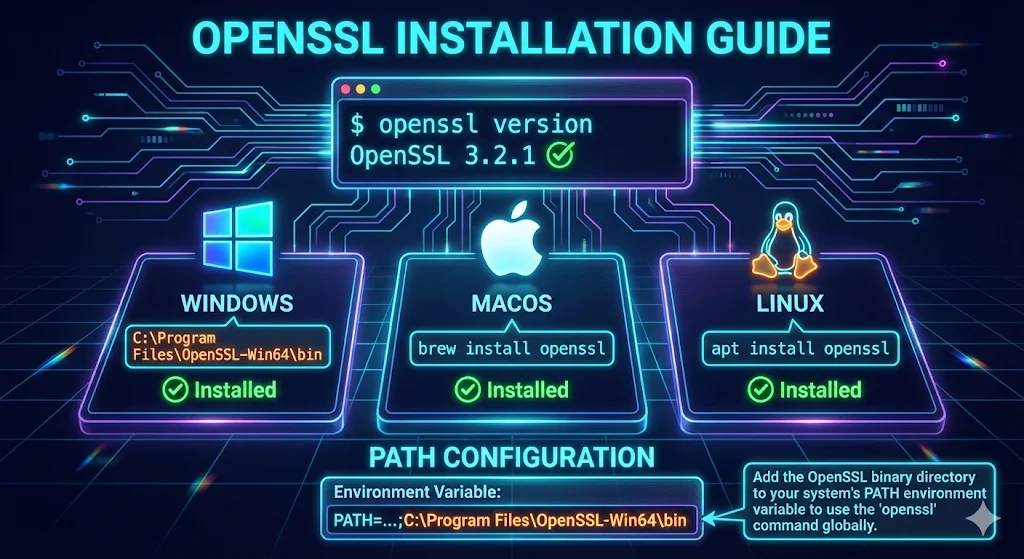
Watch: How to Install OpenSSL on Windows — Fix the PATH Error Too
What is OpenSSL?
OpenSSL is the industry-standard command-line toolkit for SSL/TLS and general-purpose cryptography. IT teams use it daily for generating private keys, creating Certificate Signing Requests (CSRs), inspecting certificate chains, debugging TLS handshakes, and validating configurations across dev, CI, and production environments.
OpenSSL is free, open-source, and runs on virtually every operating system. For infrastructure teams, having a consistent OpenSSL version across workstations, build pipelines, and servers eliminates "works on my machine" issues with TLS troubleshooting.
Next steps: Once installed, proceed to key generation, CSR workflows, and chain validation to integrate OpenSSL into your PKI runbooks.
Is OpenSSL Pre-installed?
Before installing, check if OpenSSL is already available on your system. Most Linux distributions include it by default, but macOS uses LibreSSL (a different implementation), and Windows requires manual installation.
Quick Reference: OpenSSL by Operating System
| OS / Distribution | Pre-installed? | Default Version | Notes |
|---|---|---|---|
| Ubuntu / Debian | ✅ Yes | OpenSSL 3.x | Ready to use |
| RHEL / CentOS / Rocky | ✅ Yes | OpenSSL 1.1.1 or 3.x | Depends on version |
| Fedora | ✅ Yes | OpenSSL 3.x | Latest versions |
| Alpine Linux | ✅ Yes | OpenSSL 3.x | Minimal install may need openssl package |
| Arch Linux | ✅ Yes | OpenSSL 3.x | Rolling release, always current |
| macOS | ⚠️ LibreSSL | LibreSSL 3.x | Not OpenSSL - see macOS section |
| Windows | ❌ No | N/A | Manual installation required |
How to Check If OpenSSL Is Installed
Check if the command exists:
which openssl
Check version and variant:
openssl version
Example outputs:
# OpenSSL (what you want)
OpenSSL 3.0.13 30 Jan 2024

# LibreSSL (NOT OpenSSL - common on macOS)
LibreSSL 3.3.6
Why Version Alignment Matters for IT Teams
- • OpenSSL and LibreSSL are different implementations with different feature sets
- • Version alignment between dev laptops, CI pipelines, and production prevents "works on my machine" issues
- • Vendor support statements may require specific OpenSSL branches for FIPS or appliance compatibility
- • LibreSSL (macOS default) lacks FIPS mode and some bleeding-edge TLS features
- • Minimal container images (Alpine, distroless) may ship without OpenSSL CLI tools
Windows Installation
Windows doesn't include OpenSSL by default, but there are several ways to install it. Choose the method that works best for your workflow.
Enterprise note: If application teams ship their own OpenSSL (common with Java apps or custom builds), align versions where possible to avoid TLS negotiation mismatches and SChannel vs OpenSSL confusion.
Which version: 4.0.x or 3.5.x LTS?
Both are current. slproweb lists them side by side, and OpenSSL's own guidance is to install both if you need both.
3.5.x— supported to April 8, 2030 (LTS). Already has the post-quantum algorithms (ML-KEM, ML-DSA, SLH-DSA) and the hybridX25519MLKEM768key-exchange default. The safe pick for a workstation you don't want to revisit.4.0.x— supported to May 14, 2027. Non-LTS releases get 13 months of support. Take it if you need Encrypted Client Hello, RFC 8998 / SM2-SM3, or you're matching a server already on 4.x.
The thing most likely to break you on 4.x: the ENGINE API was removed. If your HSM, smart card, or PKCS#11 tooling still loads an engine rather than a provider, it stops working. c_rehash is also gone — use openssl rehash — and command output formatting changed, so scripts that parse openssl output can behave differently.
Neither package manager carries a current LTS. As of August 2026, winget and Chocolatey both top out at 3.5.4 while slproweb ships 3.5.7 — and OpenSSL patch releases are bug and security fixes only, so that's three fixes behind. Check for yourself rather than assuming:
winget show --id ShiningLight.OpenSSL.Light --versions
choco find openssl --exact --all-versions
If you want a current LTS build on Windows, download it from slproweb.
Pre-built Binaries (Recommended)
- Download from slproweb.com — pick 4.0.1 or the 3.5.7 LTS per the version note above (the Light build is fine either way)
- Run the installer
- Choose installation directory (default:
C:\Program Files\OpenSSL-Win64) - Select "Copy OpenSSL DLLs to the Windows system directory"
- Complete the installation
Security note: Download only from the official slproweb.com site over HTTPS and verify the publisher in the installer dialog before proceeding.
The installer does not add OpenSSL to your PATH. You must do it yourself using one of the methods below, or openssl will be "not recognized" in every terminal. See the PATH fix in Troubleshooting if it still fails.
Add to PATH (GUI method)
- Press Win + R, type
sysdm.cpl - Go to Advanced → Environment Variables
- Under System Variables, find "Path" and click Edit
- Add:
C:\Program Files\OpenSSL-Win64\bin - Click OK on all dialogs
Add to PATH (PowerShell - current session only)
$env:Path += ";C:\Program Files\OpenSSL-Win64\bin"
macOS Installation
Important: macOS does not ship with OpenSSL. Instead, Apple includes LibreSSL, a fork of OpenSSL maintained by the OpenBSD project.
Check What You Have
# Check the default openssl
openssl version
# Likely output: LibreSSL 3.3.6

# Check if Homebrew OpenSSL is installed
brew list openssl 2>/dev/null && echo "Homebrew OpenSSL installed"
LibreSSL vs OpenSSL: What's the Difference?
| Aspect | LibreSSL (macOS default) | OpenSSL |
|---|---|---|
| Maintainer | OpenBSD project | OpenSSL Software Foundation |
| Focus | Security, code cleanup | Broad compatibility |
| Generate keys / CSRs | ✅ | ✅ |
| View certificates | ✅ | ✅ |
| FIPS 140-2/140-3 Support | ❌ No | ✅ Yes (3.x) |
| Some newer TLS features | ⚠️ May lag | ✅ First to implement |
When You Need Actual OpenSSL:
- • Building software that explicitly requires OpenSSL APIs
- • FIPS 140-2/140-3 compliance requirements
- • Using OpenSSL-specific features not in LibreSSL
- • Matching your Linux production environment
Enterprise recommendation: macOS LibreSSL is fine for ad-hoc certificate inspection, but for enterprise TLS troubleshooting and FIPS workflows, use Homebrew OpenSSL and mirror your server's major version.
Install OpenSSL via Homebrew
# Install Homebrew if you haven't
/bin/bash -c "$(curl -fsSL https://raw.githubusercontent.com/Homebrew/install/HEAD/install.sh)"

# Install OpenSSL
brew install openssl

# Check installed version
/usr/local/opt/openssl/bin/openssl version
# or on Apple Silicon:
/opt/homebrew/opt/openssl/bin/openssl version
Making Homebrew OpenSSL the Default (Optional)
The Homebrew OpenSSL is keg-only, meaning it won't override the system LibreSSL by default. This is intentional - some macOS components depend on LibreSSL.
Option 1: Use the Full Path (Safest)
/usr/local/opt/openssl/bin/openssl version
# Apple Silicon:
/opt/homebrew/opt/openssl/bin/openssl version
Option 2: Add to PATH for Your Shell Session
# For Intel Macs (add to ~/.zshrc or ~/.bash_profile)
export PATH="/usr/local/opt/openssl/bin:$PATH"

# For Apple Silicon Macs
export PATH="/opt/homebrew/opt/openssl/bin:$PATH"
Option 3: Create an Alias
# Add to ~/.zshrc
alias openssl='/opt/homebrew/opt/openssl/bin/openssl'
Still seeing LibreSSL? If which openssl still shows /usr/bin/openssl, your shell is still using the system default. Confirm PATH changes with echo $PATH or run hash -r to clear the shell's command cache.
Compiling Software Against OpenSSL on macOS
If you're building software that links against OpenSSL, you'll need to tell the compiler where to find it:
# Set environment variables for compilation
export LDFLAGS="-L/opt/homebrew/opt/openssl/lib"
export CPPFLAGS="-I/opt/homebrew/opt/openssl/include"
export PKG_CONFIG_PATH="/opt/homebrew/opt/openssl/lib/pkgconfig"

# Example: Install Python package that needs OpenSSL
pip install cryptography
CI/CD tip: Use these same environment variables in CI runners (GitHub Actions, self-hosted runners) to ensure build reproducibility. macOS runners may default to LibreSSL, causing cryptography packages to compile against the wrong library.
Verify Your Installation
# Confirm you're using the right OpenSSL
which openssl
openssl version

# Test SSL connectivity
openssl s_client -connect google.com:443 -brief
Once you're up and running, the next step is using openssl s_client to test a connection — it's the fastest way to confirm your install works against a real server.
Linux Installation
Most Linux distributions include OpenSSL or can install it easily via package manager.
Debian / Ubuntu
sudo apt update && sudo apt install openssl
RHEL / CentOS / Rocky Linux
sudo yum install openssl
Fedora
sudo dnf install openssl
Arch Linux
sudo pacman -S openssl
Ops tip: Pin OpenSSL major versions in Dockerfiles and package manifests where TLS behavior is sensitive (legacy backends, FIPS requirements, hardware appliances). Version drift between environments causes subtle handshake failures.
Alpine Linux (Docker/Containers)
Alpine Linux is the go-to base image for Docker containers due to its tiny footprint (~5MB). While Alpine includes OpenSSL in most configurations, minimal images may require manual installation.
Check Current Status
# Check if OpenSSL is installed
apk info openssl

# Check version
openssl version
Install OpenSSL
# Update package index
apk update

# Install OpenSSL
apk add openssl

# For development (headers for compiling)
apk add openssl-dev
Dockerfile Examples
Basic Alpine with OpenSSL
FROM alpine:3.19

# Install OpenSSL (often needed for Python, Node.js, etc.)
RUN apk add --no-cache openssl

# For apps that compile against OpenSSL
RUN apk add --no-cache openssl-dev
Python Applications
FROM python:3.12-alpine
RUN apk add --no-cache openssl-dev gcc musl-dev libffi-dev
Node.js Applications
FROM node:20-alpine
RUN apk add --no-cache openssl
Debugging SSL in Alpine Containers
Install OpenSSL if not present:
apk add --no-cache openssl
Test a connection:
openssl s_client -connect example.com:443 -brief
Alpine-Specific Notes
- • Alpine uses musl libc instead of glibc - this occasionally causes compatibility issues with pre-compiled binaries
- • The
openssl-devpackage is required if you're compiling applications that link against OpenSSL - • Alpine's OpenSSL is typically up-to-date and receives security patches quickly
- • Pin OpenSSL major versions in manifests where TLS behavior is sensitive
FIPS warning: For validated FIPS, use a vendor-supplied FIPS module or a distribution with a certified OpenSSL build. Alpine plus openssl alone is not FIPS-certified. See our OpenSSL FIPS Compliance Guide for validated module implementation, Security Policy requirements, and audit documentation.
Multi-Stage Dockerfile (Build + Runtime)
For production, use a multi-stage build to compile with openssl-dev but ship only openssl in the runtime image:
# Build stage - includes headers for compilation
FROM alpine:3.19 AS builder
RUN apk add --no-cache openssl-dev gcc musl-dev
WORKDIR /app
COPY . .
RUN gcc -o myapp myapp.c -lssl -lcrypto

# Runtime stage - minimal footprint
FROM alpine:3.19
RUN apk add --no-cache openssl
COPY --from=builder /app/myapp /usr/local/bin/
CMD ["myapp"]
Related: Having SSL issues in containers? Check our Java SSL troubleshooting guide or OpenSSL s_client guide.
Troubleshooting Common OpenSSL Errors
Common Error Messages:
- 'openssl' is not recognized as an internal or external command
- openssl: command not found
- The term 'openssl' is not recognized as the name of a cmdlet
Quick Reference Table
| Symptom | Likely Cause | Quick Fix |
|---|---|---|
| openssl: command not found | Not installed or PATH not set | Install + verify with which openssl |
| 'openssl' is not recognized | Windows PATH not configured | Add to PATH or use full path |
| Shows "LibreSSL" not "OpenSSL" | macOS default (LibreSSL) | Install via Homebrew, update PATH |
| Works in new terminal, not old | Terminal not refreshed | Restart terminal or source ~/.zshrc; on Windows 11 a new tab isn't enough — quit Windows Terminal entirely |
| Works locally, not in CI | CI image missing OpenSSL | Add apk add openssl or equivalent |
Solution 1: OpenSSL Not Installed
The most common cause is that OpenSSL simply isn't installed. Follow the installation instructions above for your platform.
Solution 2: PATH Not Configured (Windows)
OpenSSL is installed but Windows can't find it. Check if OpenSSL exists:
# Check if OpenSSL is installed
dir "C:\Program Files\OpenSSL-Win64\bin\openssl.exe"

# If found, add to PATH temporarily
$env:Path += ";C:\Program Files\OpenSSL-Win64\bin"

# Verify it works
openssl version
Solution 3: Restart Your Terminal (Fully — Not Just a New Tab)
After installing OpenSSL or modifying PATH, you need to restart your terminal (Command Prompt, PowerShell, or Terminal app). Changes to environment variables don't take effect in already-running terminals.
Windows 11 gotcha: opening a new tab in Windows Terminal is not enough. Every tab inherits the environment the Windows Terminal process had when it launched, so a new tab still sees the stale PATH. Quit Windows Terminal entirely and reopen it — this is exactly the point where people conclude the PATH fix "didn't work" and start reinstalling.
Solution 4: Use the Full Path
If PATH configuration isn't working, use the full path to OpenSSL:
# Windows
"C:\Program Files\OpenSSL-Win64\bin\openssl.exe" version

# macOS (Homebrew)
/opt/homebrew/opt/openssl/bin/openssl version
Solution 5: Use Git Bash (Windows Quick Fix)
If you have Git for Windows installed, open Git Bash instead of Command Prompt - OpenSSL is included:
# In Git Bash
openssl version
# Output: OpenSSL 3.5.7 (the LTS branch Git for Windows bundles)
Verify Your Installation
After installation, verify OpenSSL is working correctly:
# Check version
openssl version

# Expected output (version may vary):
# OpenSSL 4.0.1 9 Jun 2026 (Library: OpenSSL 4.0.1 9 Jun 2026)
Test that OpenSSL can perform basic operations:
# Generate a quick test key (proves OpenSSL works)
openssl genrsa -out test.key 2048

# View the key info
openssl rsa -in test.key -text -noout

# Clean up
rm test.key  # or 'del test.key' on Windows CMD
Success! If you see key information output, OpenSSL is installed correctly.
Troubleshooting: If openssl genrsa fails or hangs, double-check you're calling the expected binary (which openssl) and that antivirus or EDR software isn't blocking crypto operations.
Next steps: Once verified, proceed to key generation, CSR workflows, and chain validation using the guides below to integrate OpenSSL into your existing PKI runbooks.
Related Resources
OpenSSL s_client
Debug handshake failures, protocol mismatches, and connection issues
Key Generation
Generate RSA and ECDSA private keys with production-ready parameters
CSR Creation
Create Certificate Signing Requests with SANs for multi-domain certs
Verify Certificate Chain
Intermediate/anchor debugging for load balancers, proxies, and apps
Java SSL Troubleshooting
Fix PKIX path failures, truststore issues, and JVM certificate problems
How TLS Works
Understand the TLS protocol OpenSSL implements
FIPS Compliance
Implement FIPS 140-3 validated cryptography with OpenSSL 3.x